Getting paid with Stripe
Connect Stripe, set your prices, understand fees, and see when payouts reach your bank.
Updated August 17, 2026
Next Play uses Stripe to move money from a family’s card into your bank. You
connect once, set your prices, and payments run on their own after that.
Connect your Stripe account
Open Settings from the sidebar and choose the Payments tab. Select
Connect with Stripe, then follow Stripe’s prompts to confirm your identity
and add a bank account. Stripe holds those sensitive details, so none of it
passes through Next Play.
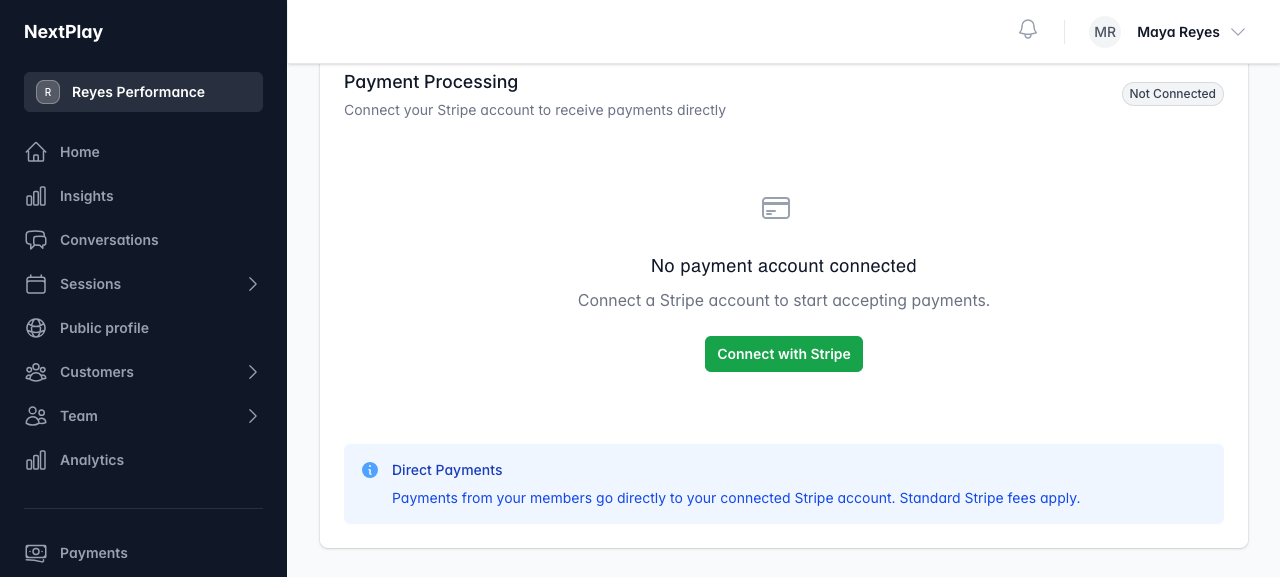
When Stripe is done, the Payments tab shows a green Active badge and a note
that your account is ready to accept payments. Until it reads Active, paid
bookings stay closed. You can return any time and use Open Stripe Dashboard
or Refresh Status.
Only an owner sees Settings and Payments. If you run free sessions only, you can
skip this step and still take bookings.
Set your prices
A price lives on the thing people book. A program carries a drop-in price or a
package, and a one-off session has its own price field that starts at $50. Set a
price to $0 to make it free. You can change a price any time before someone
books.
Fees, in plain numbers
Two fees can apply to a paid booking, and both are set up so you keep your full
session price:
- A Next Play service fee of $1 plus 1% per transaction. It is added at
checkout, so the person booking covers it. It is how the platform stays free
to run, with no monthly bill. - Stripe’s processing fee of 2.9% plus 30 cents per transaction. This is passed
to the customer by default, as a clear “Processing Fee” line at checkout, so
you receive the full price.
If you would rather absorb the processing fee yourself, turn off Pass
processing fees to customers in the Payments tab. Your families then see only
the session price and the service fee, and the processing fee comes out of your
payout instead.
When payouts reach your bank
A payment lands in your connected Stripe account first, then Stripe deposits it
to your bank on a regular schedule. Stripe sets that schedule when you connect,
usually a couple of business days after the first payment clears. Open the Stripe
dashboard from the Payments tab to see the exact timing or change it.
Refunds
To refund a payment, open Payments, choose the payment, and select Issue
Refund. Enter a full or partial amount and a reason. Refunds are an owner or
admin action.
What a customer sees at checkout
When someone books a paid session, they sign in or create a free account, then
pay the price you set plus a “Service Fee” line. Unless you turned the setting
off, they also see a “Processing Fee” line. The spot is theirs the moment the
payment goes through.
Was this helpful?