Editing your profile and photo
Update your name, email, and phone, change your profile picture, and set your message notifications.
Updated August 17, 2026
Your profile is what families see when they reach out to you, so it is worth
keeping current. You can update your name, email, phone, and picture whenever you
need to.
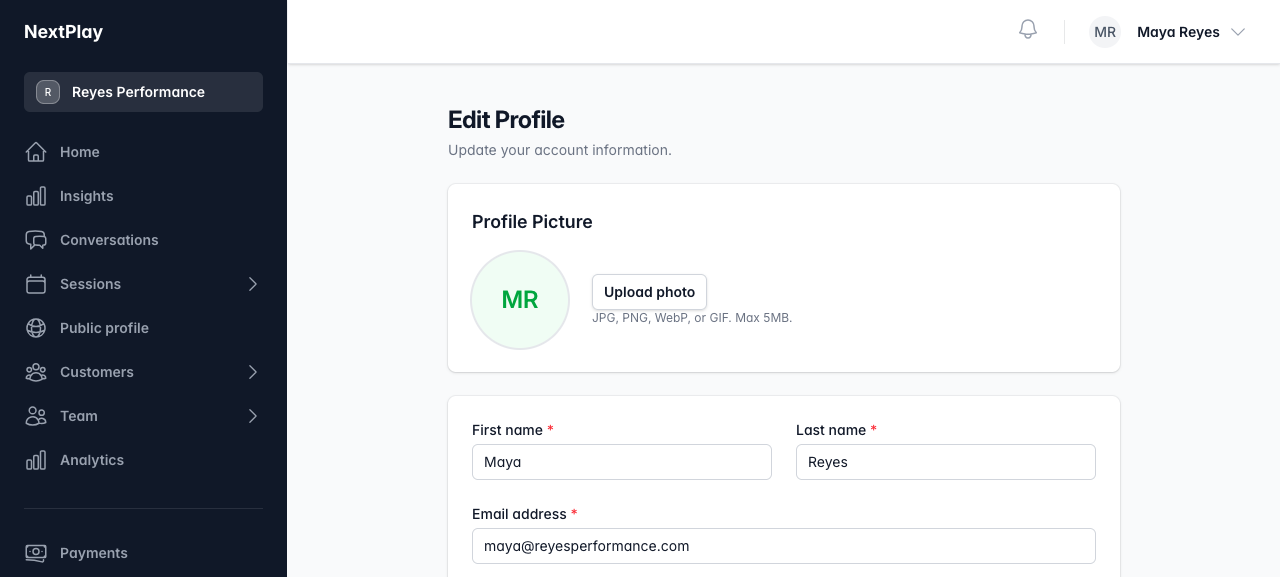
Edit your account info
Open your profile and tap Edit Profile. From there you can change:
- First name and Last name
- Email address
- Phone (optional)
When you are done, tap Save Changes. If you change your mind before saving,
tap Cancel to leave everything as it was.
Add or change your profile picture
On the Edit Profile page, look for the Profile Picture section near the
top.
- To add or swap your photo, tap Upload photo (it reads Change photo if
you already have one), pick an image, then tap Save. - To take your photo off, tap Remove photo. You will go back to your
initials until you upload a new one.
Use a JPG, PNG, WebP, or GIF up to 5MB. Your photo saves on its own, separate
from the rest of the form, so you do not lose anything you were typing.
Set your message notifications
Message notifications live on your profile page, under Notification
Preferences. These only fire when someone messages you and you are not already
online.
- Push notifications sends an alert to your phone or computer.
- Email notifications for messages emails you about new messages.
- Show online status lets others see when you are online in a conversation.
Turn each one on or off, then tap Save preferences.
Was this helpful?