Bookings and attendance
See who is booked, and check athletes in at the door.
Updated August 17, 2026
Once families start booking, you have two simple tools: a list of who is coming,
and a way to mark who showed up.
See who is booked
Open All Bookings under Customers. The view opens with counts for total,
confirmed, pending, cancelled, and checked in, so you can read the room at a
glance. Filter by status, session, or date, or search by name or email to find a
specific family.
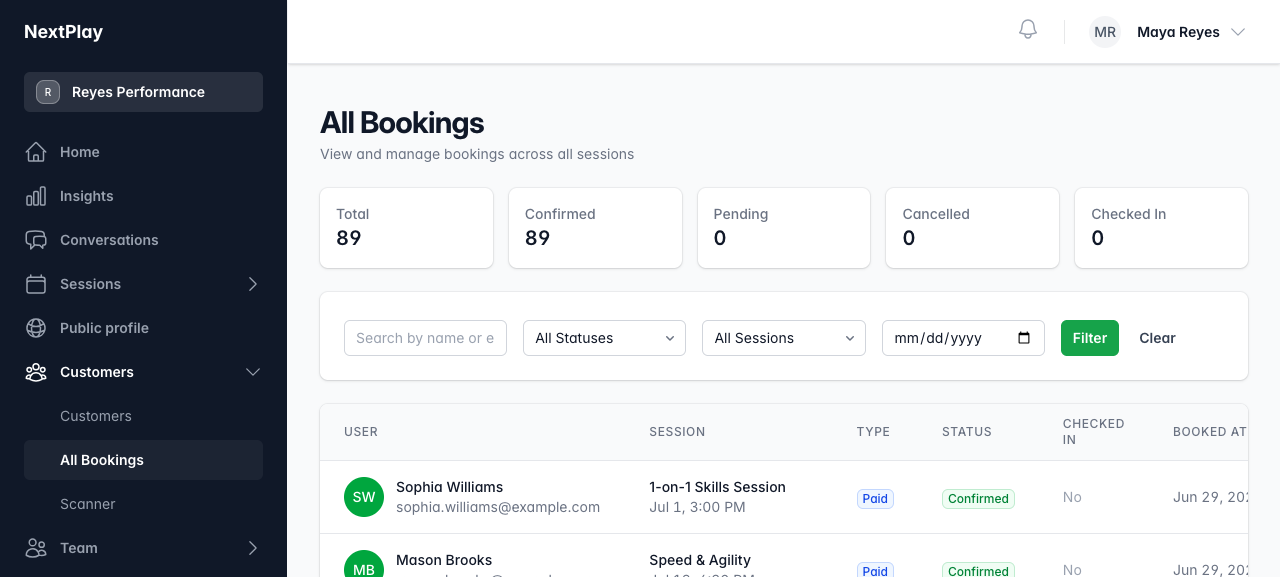
A confirmed booking is paid or committed. A pending booking is still waiting on
payment.
Check athletes in at the door
You have two ways to mark attendance, and you can mix them.
Open the Scanner under Customers to see today’s sessions and your recent
check-ins. Scan an athlete’s booking QR code, and they are checked in with the
time recorded.
For a hands-off option, post the arrival QR code at your entrance. An athlete or
parent scans it, confirms their booking, and checks in themselves. If a session
needs a signed waiver, they are sent to sign it first. This runs on the honor
system, so it is quick and needs nothing from you at the door.
Either way, the booking moves to Checked In, and your attendance count stays
accurate.
Was this helpful?