Customizing your space
Upload your logo and set your brand colors so your space looks like yours.
Updated August 17, 2026
You can make your space look like your own with your logo and your colors. This
is an owner setting.
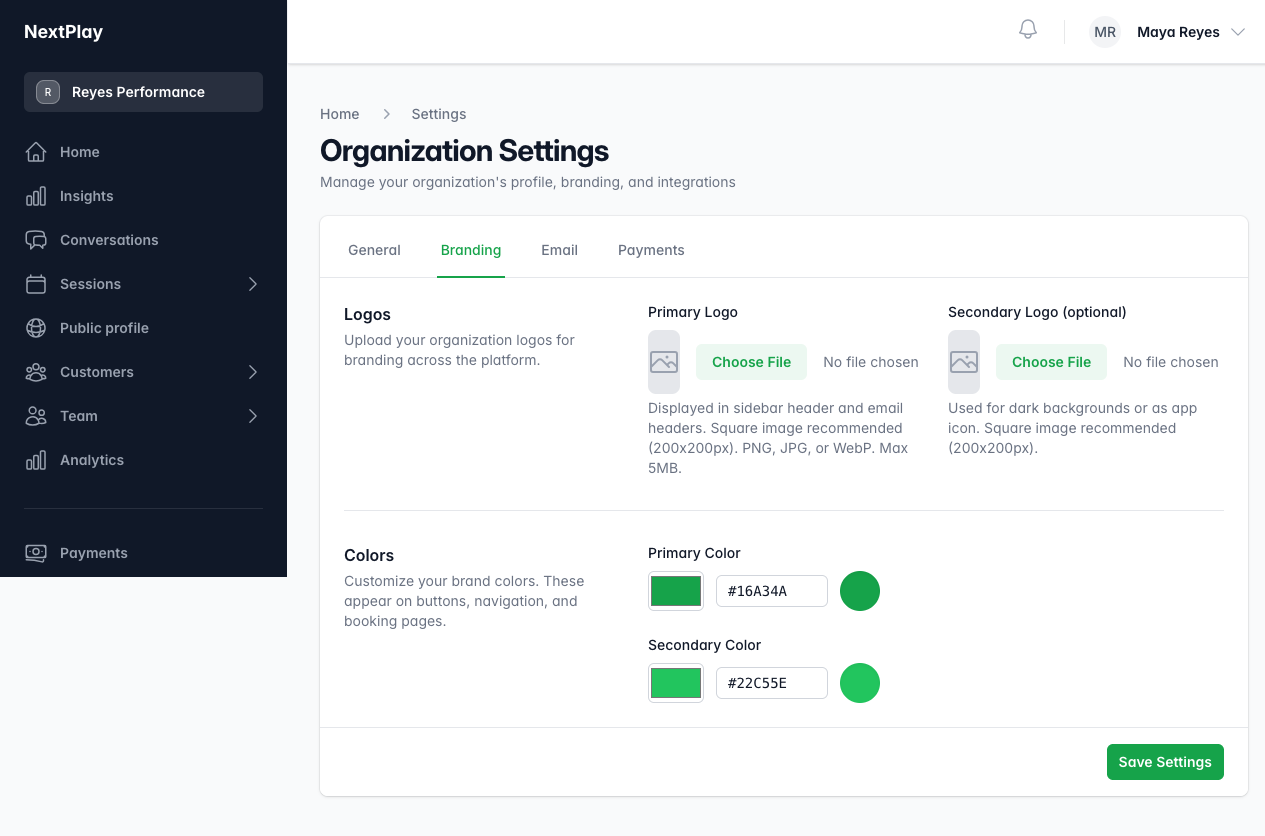
Upload your logo
Go to Settings, then Branding, and upload your Primary Logo. There is
also a Secondary Logo slot for dark backgrounds or a smaller mark. Your logo
shows in your sidebar and in the headers of the emails families get.
Set your colors
In the same place, pick a Primary Color and a Secondary Color. These
appear on your buttons, navigation, and booking pages, so what families see
matches your brand.
Start over
If you want to go back to the default look, use the reset in Branding. It puts
the colors and logos back to the defaults.
Was this helpful?