Booking a session
Find a session, choose who is going, and reserve a spot in a few taps.
Updated August 17, 2026
Booking takes a minute on your phone. You find a session, say who is going, and
confirm.
Find a session
Open your trainer’s link, or tap Programs to browse what they offer. Pick a
program or session to see the details and the dates that are open.
Book your spot
What you see depends on what you tap.
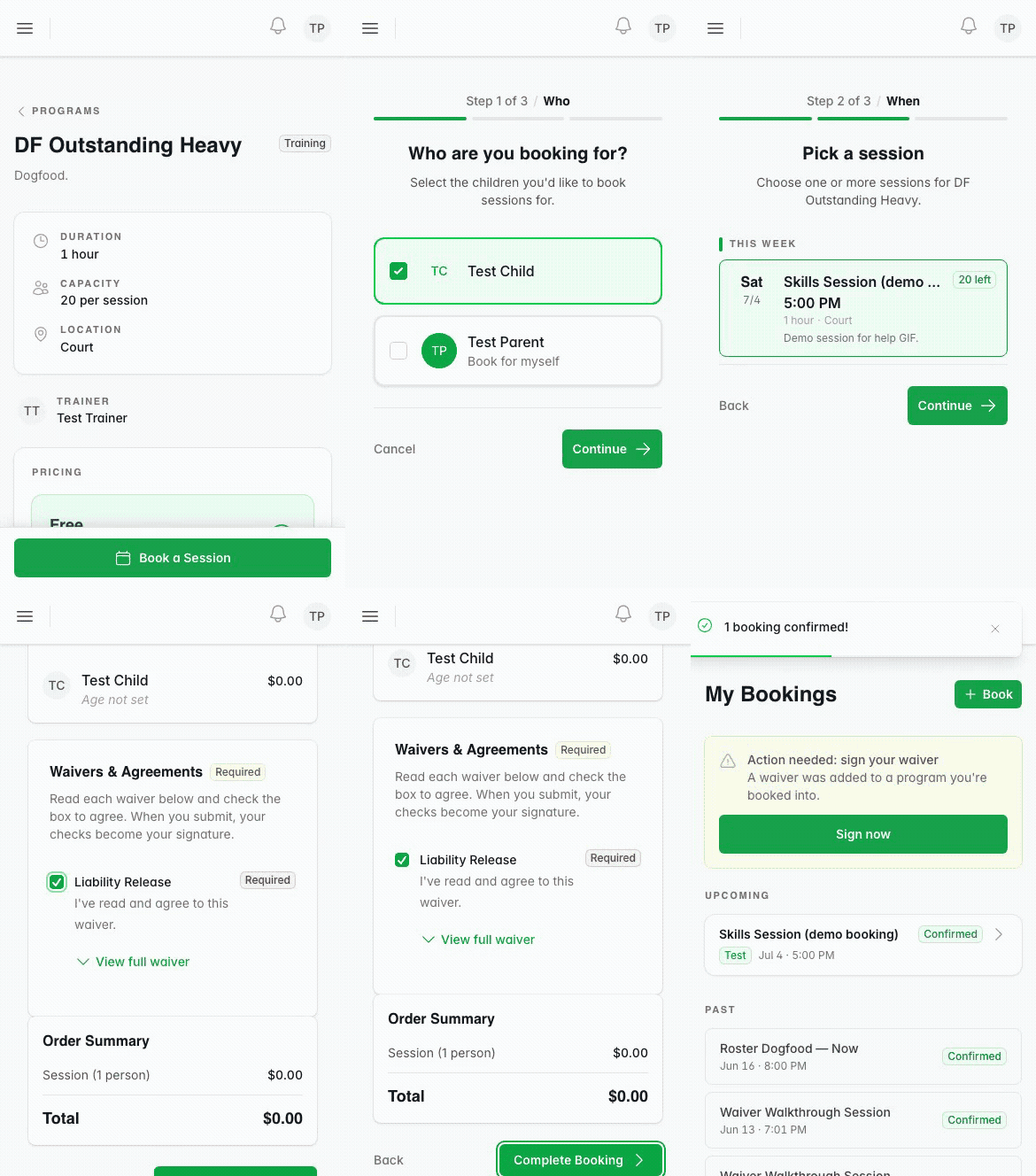
Booking a program walks you through a few quick steps. As a parent you start on
Who are you booking for? and choose yourself, a child, or both. Then you pick
the date on Pick a session, answer any extra questions the program asks, and
land on Review your booking.
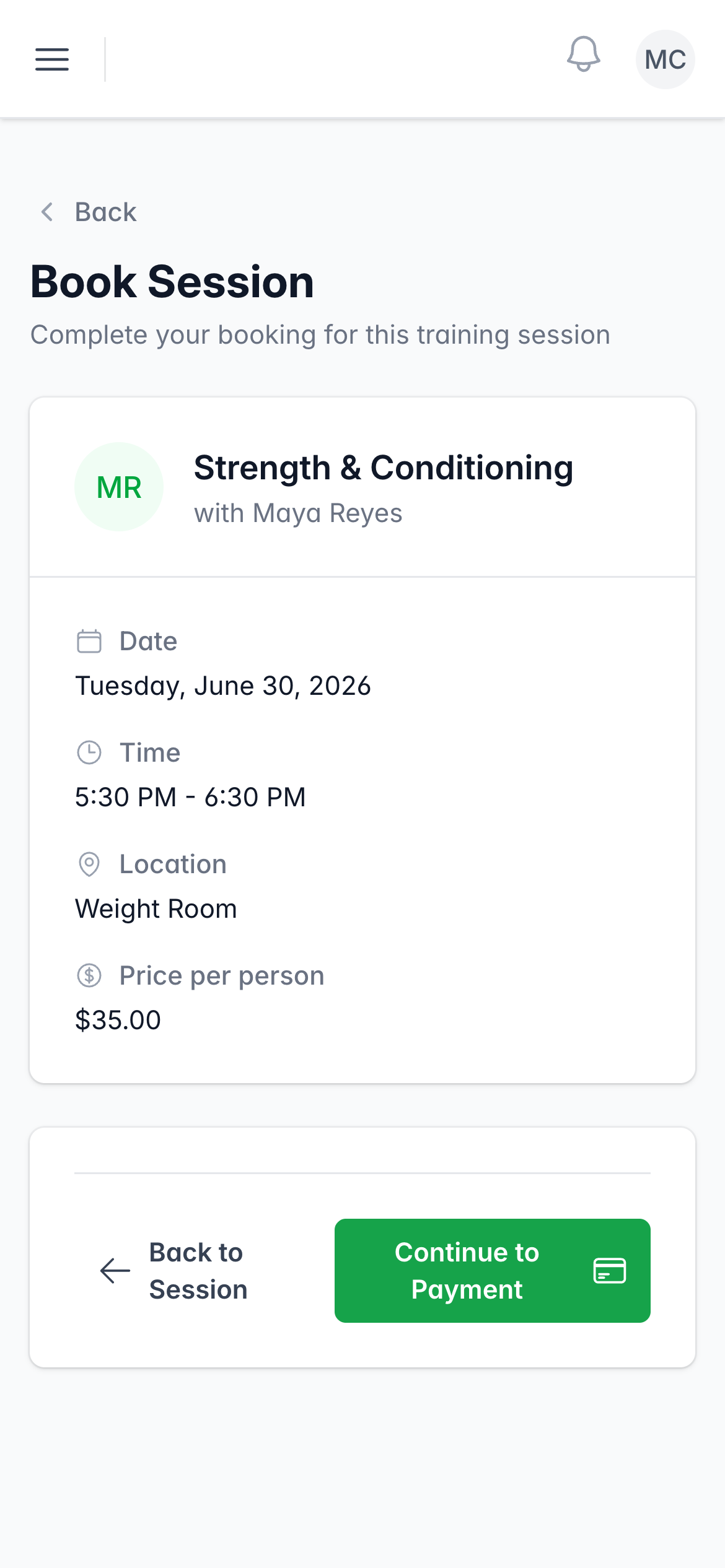
Booking a single session is one screen. It shows the session details and the
price, and you tap Continue to Payment.
Sign in and confirm
You sign in or tap Create an account if you are new. Then a paid session
takes you to payment by card, and a free session confirms right away.
You land on My Bookings with your spot confirmed. For what payment looks
like, see paying for sessions.
Booking for your child
To book for a child, add them first. Open Children under My Stuff, tap Add
Child, and enter their name and date of birth. After that, your child appears
at the Who are you booking for? step every time.
Find your bookings later
Your sessions live under My Bookings, split into Upcoming and Past. Open a
booking to see the details or add it to your calendar.
Was this helpful?