Switching between spaces
Move between the different organizations you belong to, and see why your bookings stay separate in each.
Updated August 17, 2026
If your account belongs to more than one organization, you can move between them without signing out. Each one keeps its own bookings, credits, and membership.
Switch from the sidebar
When you belong to more than one space, the top of the sidebar shows your current organization’s name with a small arrow next to it. Tap it to open the list, then pick the one you want. The space you are in now has a check mark beside it.
The page reloads into that organization, and the sidebar updates to its name.
The selection screen
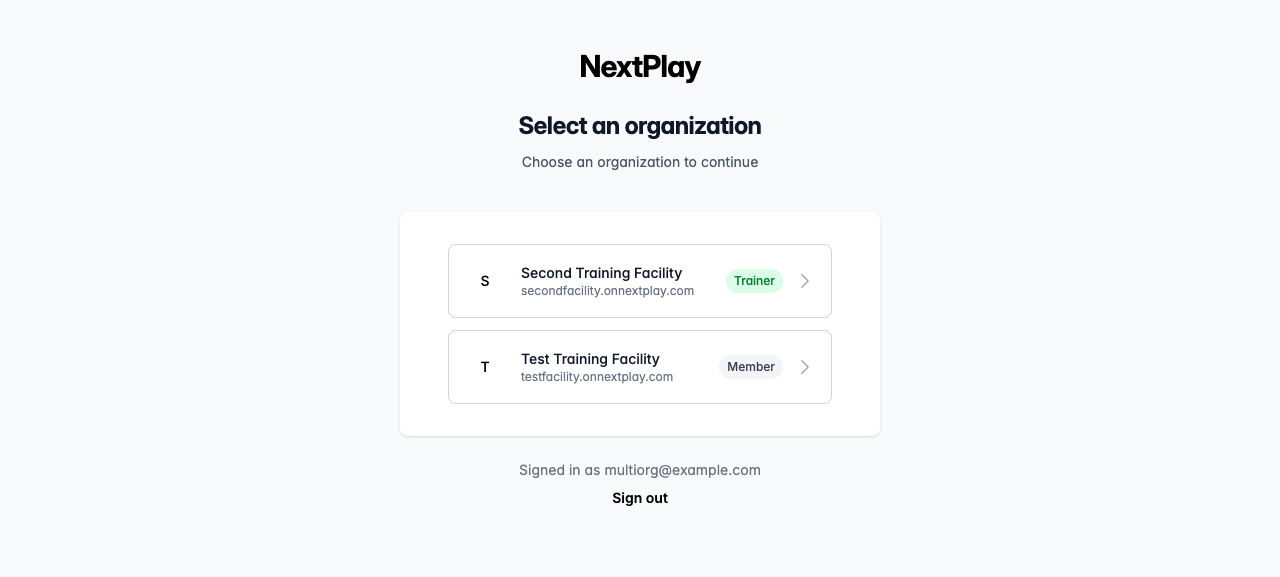
Right after you sign in, or any time you land on the Select an organization screen, you will see a card listing every space you belong to. Each row shows:
- The organization’s name
- Its web address, like
yourtrainer.onnextplay.com - A small badge with your role there, such as Member
Tap a row to go straight into that space. If you are done for the day, use Sign out at the bottom.
Everything is per space
Your spaces don’t share data, which keeps each trainer’s sessions and payments separate. So in each organization you have your own:
- Bookings and session history
- Credits and passes
- Membership and role
If a booking or credit looks like it went missing, you are almost always in the wrong space. Switch back to the one where you booked and it will be there.
Was this helpful?