More program options
Set early-bird pricing, registration windows, a cover image, and reuse a program as a template.
Updated August 17, 2026
The program form has a few extra settings beyond name and price. Here is how to use early-bird pricing, registration windows, a cover image, and how to reuse a program as a template.
Early-bird pricing
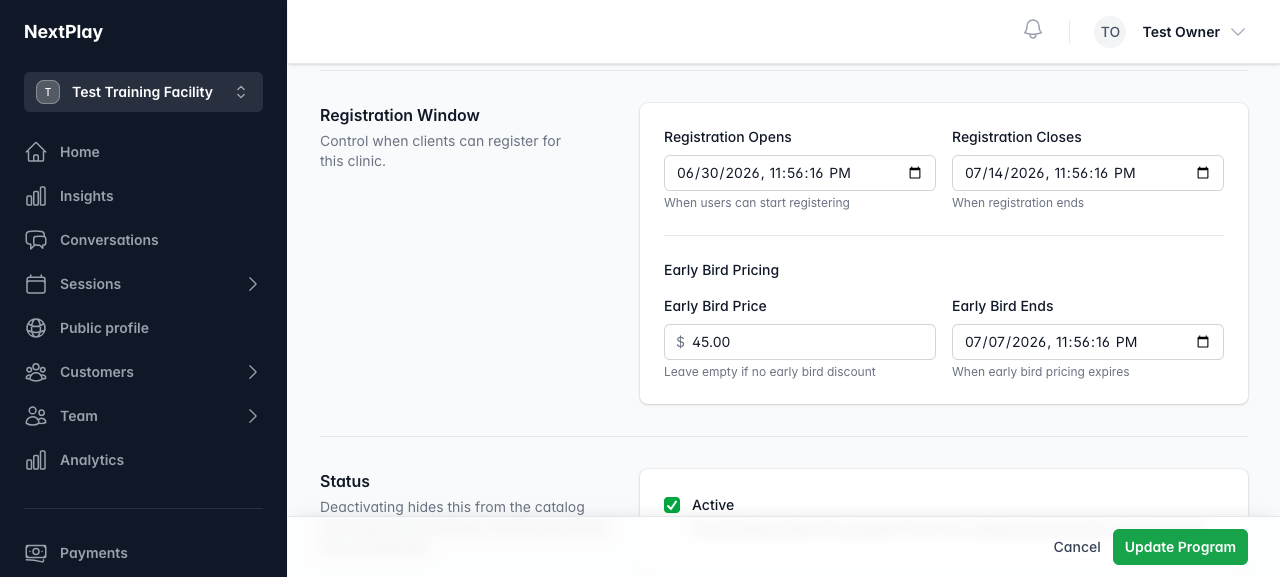
For a clinic, you can run a lower price up to a date. On the program form, open the Registration Window section and find Early Bird Pricing.
- Set Early Bird Price to the discounted amount.
- Set Early Bird Ends to the date and time the discount stops.
Until that date, clients pay the early-bird price. After it, they pay your regular price. Leave Early Bird Price empty if you do not want a discount.
Registration windows
In the same Registration Window section, you can control when enrollment is open.
- Registration Opens is when clients can start registering.
- Registration Closes is when registration ends.
Both are date-and-time fields. Leave them blank to keep registration open with no start or end. When you are done, save with Update Program.
Reuse a program as a template
If you run the same kind of program again, duplicate one you already have instead of building it from scratch. Duplicating copies the settings into a new program named “Copy of” your original title, and it lands you on that copy’s edit form.
The copy clears the original’s Registration Opens, Registration Closes, and Early Bird Ends dates, so you set fresh ones. Update the rest of the details, then save. The copy is its own program, so changes to it do not touch the original.
Cover image
The Cover Image section sets the picture clients see in the catalog and when your program is shared on social media. Click the upload area or drag and drop a file. It accepts JPEG, PNG, or WebP, up to 10MB.
To clear the image, use Remove, then save.
Was this helpful?