On-demand availability
Set weekly time slots for an on-demand program, then publish a week so clients can book it.
Updated August 17, 2026
On-demand programs, like one-on-one personal training, let clients pick a time that works instead of joining a fixed weekly class. You set the open slots, and they book the ones they want.
Open the availability editor
This only applies to programs whose scheduling is set to On Demand, which you choose when you create the program.
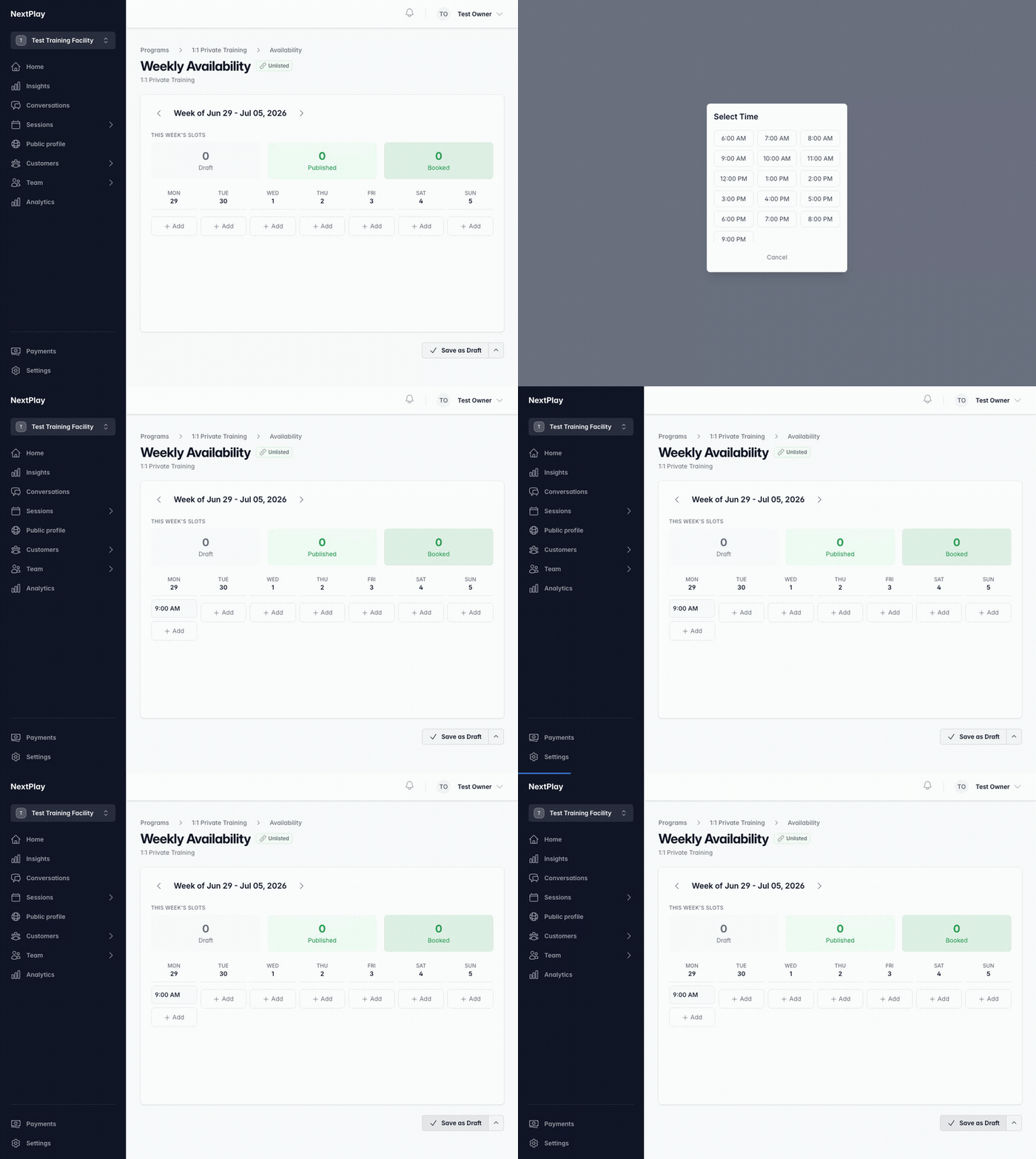
From the program page, find the Edit Availability card and open it. You’ll land on a week view with a column for each day, Monday through Sunday. Use the arrows next to Week of to move between weeks.
Add your weekly slots
Under any day, tap Add and pick a start time from Select Time. The slot uses your program’s session length, so a 60 minute program creates 60 minute slots. Repeat for every time you want to offer that week.
- To remove a slot, hover over it and tap the x. You can’t remove a slot once someone has booked it.
- The counters at the top show how many slots are Draft, Published, and Booked for the week.
When you’re done arranging a week, tap Save as Draft. Drafts are saved but stay private to you until you publish.
Publish a week
Clients can only book slots once the week is published. From the save button, choose Save & Publish to save your changes and open the week up for booking in one step.
Any slot whose start time has already passed is skipped, since it can’t be booked.
Copy last week
If your hours are similar week to week, you don’t have to rebuild them. On a week that follows one with slots, tap Copy Previous Week to bring last week’s times forward. Adjust anything that changed, then publish.
Was this helpful?