Private and invite-only programs
Set who can find a program, share an unlisted link, and invite people to a private one.
Updated August 17, 2026
Every program has a visibility setting that decides who can find it and how they get in. You pick it when you create the program, and it stays fixed after that.
Choosing who can see a program
When you create a program, the Visibility field has three choices:
- Public (visible in catalog): anyone browsing your catalog can find and book it.
- Unlisted (shareable link): it stays out of the catalog. The only way in is the link you share.
- Private (invite only): it stays out of the catalog and people get in only after you invite them by email.
Visibility is locked once the program exists. If you need a different setting, create a new program and choose the visibility you want at that point.
Sharing an unlisted program
An unlisted program does not show up in your catalog, so the link is how people reach it. Open the program and find the Booking Link section. It holds the link, plus two buttons:
- Copy puts the link on your clipboard so you can paste it into a text, an email, or a post.
- Regenerate Link swaps in a brand new link and turns off the old one.
Use Regenerate Link when a link has spread too far or you want to shut off access for whoever already has it. Once you regenerate, send the fresh link to the people you still want in.
Inviting people to a private program
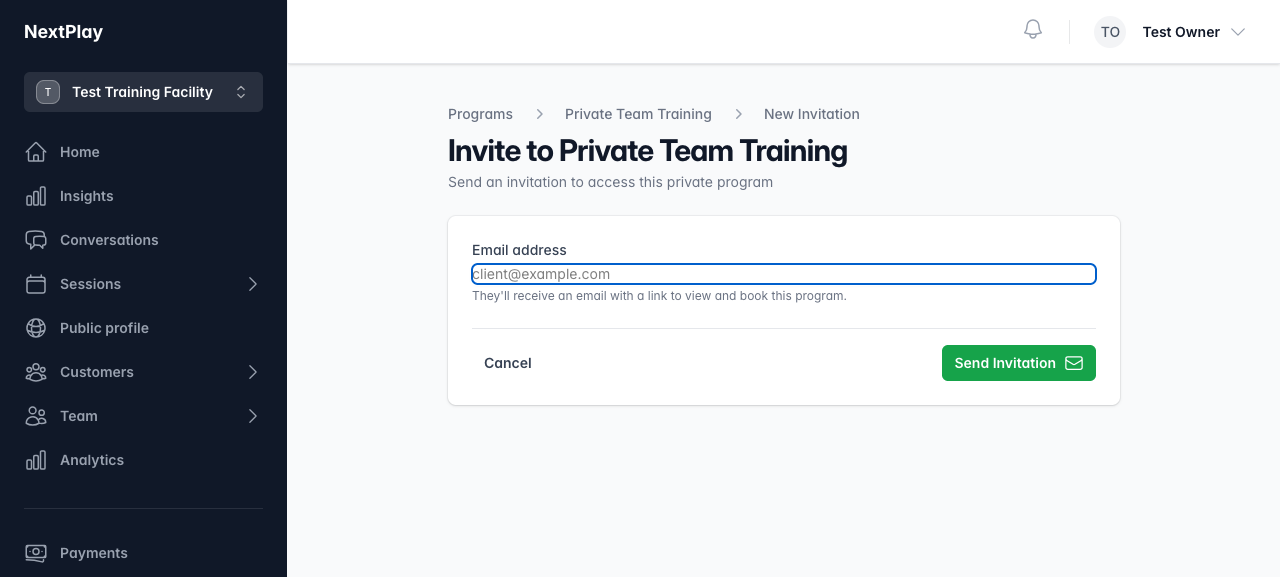
A private program is invite only. Open the program, then use Manage Invitations to reach the invitation list. From there:
- Tap Invite to start a new one.
- Type the person’s address in the Email address field.
- Tap Send Invitation.
They get an email with a link to view and book the program. Each invitation is tied to that one email address.
Resending, revoking, and reading status
The invitation list shows every invite and where it stands. Each one carries a status badge:
- Pending: sent, not accepted yet.
- Accepted: the person joined the program.
- Revoked: you cut off the invite.
- Expired: the invite aged out before it was accepted.
While an invitation is still Pending, two buttons sit next to it:
- Resend sends the email again, which helps when it got buried or lost.
- Revoke cancels it so the link no longer works.
You can only resend or revoke a pending invite. Once one is accepted, revoked, or expired, those buttons go away.
Was this helpful?