Refunds, cancellations, and waitlists
Issue a refund, handle a family that cancels, and let the waitlist fill a freed spot.
Updated August 17, 2026
Plans change. Here is how to handle a refund, a family that drops, and a full
session.
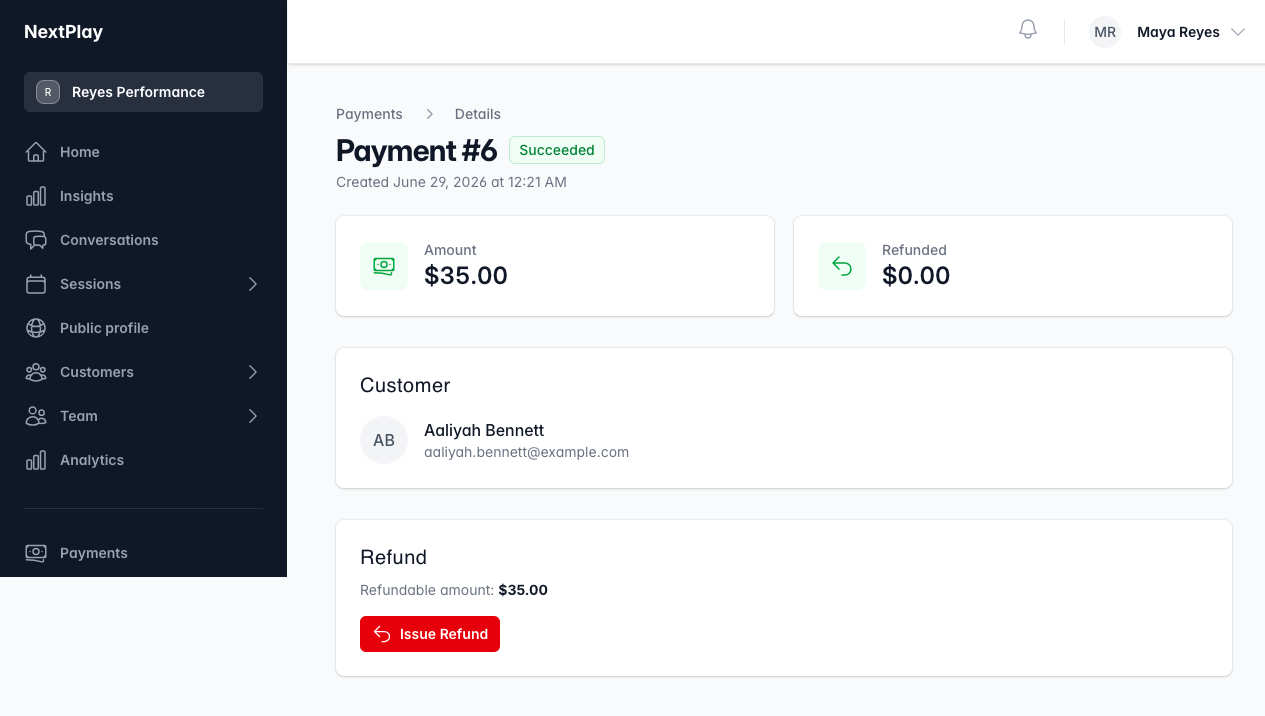
Issue a refund
To refund a payment, open Payments, choose the payment, and use Issue
Refund. Enter a full or partial amount and a reason. Refunds are an owner or
admin action, and the money goes back to the card it came from.
The Stripe setup and the fee details are in
getting paid with Stripe.
When a family cancels
A family can cancel their own booking from My Bookings, any time before the
session starts. When they do, their spot reopens for someone else.
A cancellation does not refund them on its own. The payment stays with you until
you choose to issue a refund, so you decide how to handle each one. Set the
expectation up front, like a cutoff for a full refund, and apply it with Issue
Refund.
Let the waitlist fill the spot
When a session is full, families can join its waitlist and take a place in line.
The moment a seat opens, whether someone cancels or you raise the capacity, the
next person in line is offered it and has 24 hours to claim. If they pass or run
out of time, it moves to the next.
You do not have to chase anyone down. The waitlist does the offering for you.
Was this helpful?