Running check-in at the door
Scan athletes in, take a cash payment on the spot, find someone on the roster, and undo a check-in you didn't mean to make.
Updated August 17, 2026
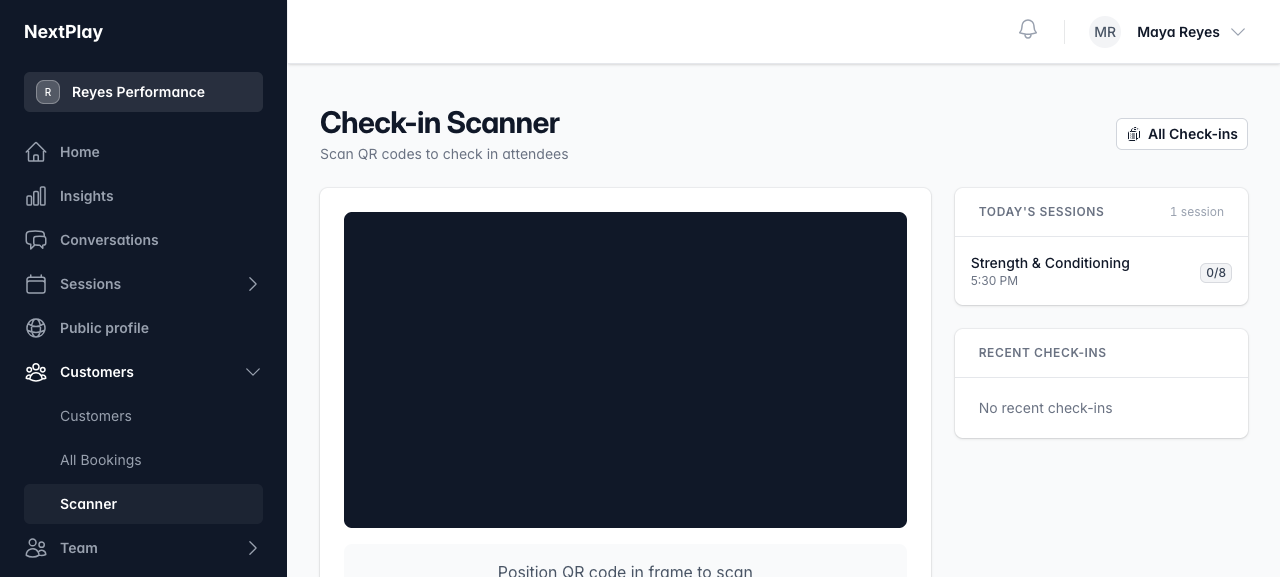
Check-in is how you mark who actually showed up. Open Check-in Scanner from your admin tools and you can scan athletes in, take a cash payment on the spot, or find someone by name.
Scan athletes in
The scanner page opens your camera with the prompt Position QR code in frame to scan. Point it at the athlete’s booking QR code and a confirmation card slides up with their name and session.
- Tap Confirm Check-in to mark them in.
- Tap Cancel if it’s the wrong person or you scanned by accident.
No QR code handy? Scroll down to Find an attendee, type a name or email into Search by name or email, and tap the person’s row. That checks them in the same way a scan does. The Today’s Sessions and Recent Check-ins cards on the right show your counts as people arrive.
If someone still owes a required waiver, you’ll see a Waiver needed flag on their card or roster row. It links to their booking, where you can sort the waiver out before checking them in.
The arrival QR poster
Every org has a printable Check-in QR code. Print it and post it where clients arrive. When a booked member scans it while signed in, they check themselves in. If they haven’t booked yet, the same scan sends them to book.
Use the Copy button to grab the link if you’d rather share it digitally. A family member who scans it but still owes a required waiver is asked to sign before they can check in.
Take a cash payment at check-in
When someone booked with cash and hasn’t paid yet, their confirmation card shows a Cash badge with the amount pending, and the confirm button reads Collect Payment & Check In. Tapping it records the cash as received and checks them in at the same time, so you don’t have to mark the payment separately.
You can also mark a cash payment as received from the session’s booking list later if you’d rather collect first and check them in another way.
Fix a mistake
Checked in the wrong person? You have two ways to undo it.
- Right after a check-in, the green success banner has an Undo button. Tap it to reverse that check-in.
- Later on, open All Check-ins from the scanner (or Check-ins from your admin tools). Find the record and tap Reverse (or Undo on mobile), then confirm.
A reversed check-in stays in the list with a Reversed badge instead of Checked In, so you keep an accurate record of what happened.
Was this helpful?