Managing your customers
Find who has booked with you, see a customer's full history, and deactivate or reactivate an account.
Updated August 17, 2026
The Customers page is your list of everyone who has booked a session or joined your organization. From here you can look up one person, see what they have booked and paid, and turn an account off or back on.
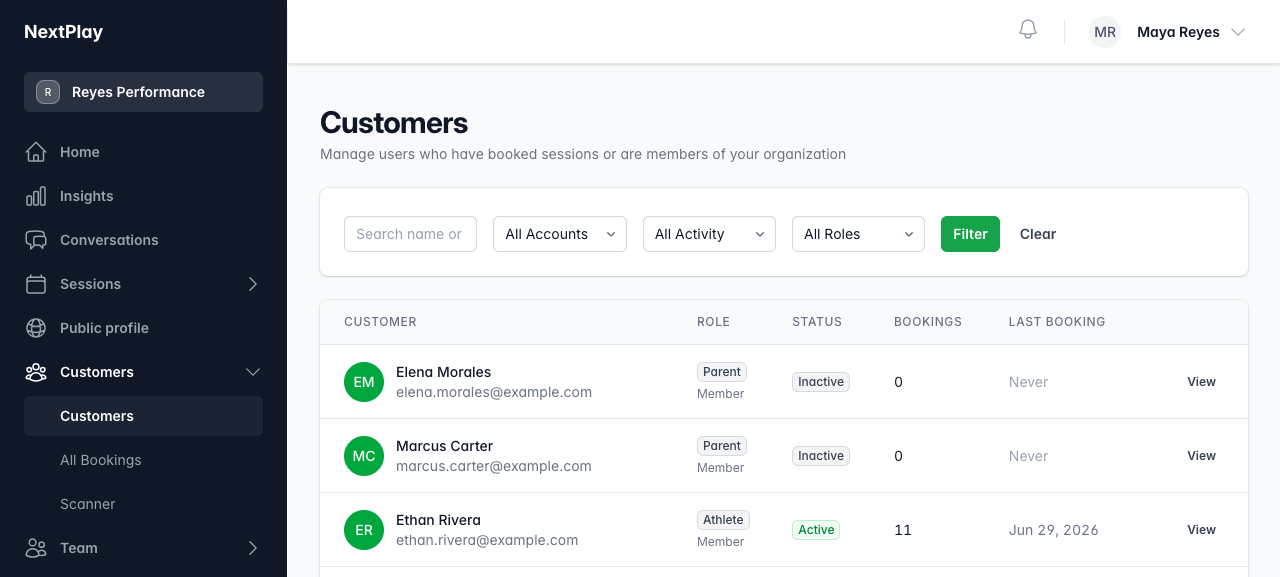
The customers list
Open Customers to see everyone in one table. Each row shows the person’s name and email, their Role, their Status, how many Bookings they have, and their Last Booking date.
Status tells you where someone stands:
- Active means they have booked in the last 30 days.
- Inactive means they have not booked recently, but their account still works.
- Deactivated means you turned the account off, and they cannot log in.
Tap View on any row to open that customer’s profile.
Searching and filtering
Use the search box to find someone by name or email. To narrow the list further, set any of the filters and tap Filter:
- Account status: All Accounts, Active, or Deactivated.
- Activity: All Activity, Recent (30 days), or Inactive.
- Role: All Roles, Parents, Athletes, or Members.
Tap Clear to drop every filter and go back to the full list.
Opening a customer
A customer’s profile pulls together their history with your organization. At the top you get four quick numbers: Total Bookings, Total Spent, Check-in Rate, and Customer Since. Use the Message button to start a conversation with them.
Below that, Booking History lists each session they booked with the Session, Status, Payment, Checked In, and Booked At for each one. If the customer is a parent who manages kids, a Managed Children section shows each child and how many bookings they have.
Deactivating and reactivating
Scroll to the bottom of a customer’s profile to turn their account off or back on.
Deactivate Account logs the person out right away and blocks them from signing in until you reactivate them. Their bookings, payments, and stats stay put, so nothing is lost. You will be asked to confirm first.
When an account is off, the same spot shows Reactivate Account. Tap Reactivate and confirm to restore access, and they can log in and book again.
Was this helpful?