Email and payment settings
Set how your emails look, decide who covers Stripe fees, and open your Stripe dashboard.
Updated August 17, 2026
This is where you control how your emails read to the people who get them, who pays Stripe’s processing fees, and the basics like your address and timezone. These are owner settings.
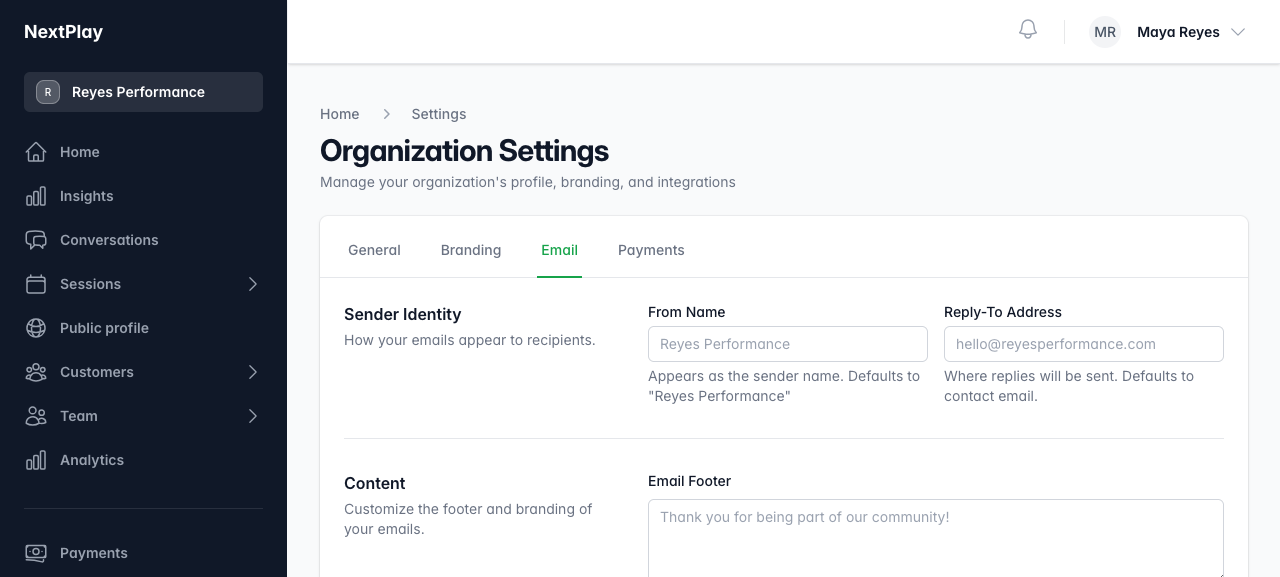
Email settings
Open the Email tab in settings. This changes how your automated emails look to parents and athletes.
- From Name is the sender name people see in their inbox. Leave it blank to use your organization’s name.
- Reply-To Address is where replies land when someone hits reply. Leave it blank to use your contact email.
- Email Footer is the custom text at the bottom of every email. Something like “Thank you for being part of our community!” works well.
- Show organization logo in emails puts your logo at the top of the message.
There is a Preview further down the page so you can see the from name, reply-to, and footer before you commit. When it looks right, hit Save Settings.
Pass processing fees to customers
When Stripe is connected, the Payments tab has a checkbox called Pass processing fees to customers. Turn it on and a “Processing Fee” line item gets added at checkout to cover Stripe’s 2.9% + $0.30 per transaction. You receive the full session or subscription price, and the customer covers the fee.
Leave it off and the fee comes out of your payout instead. The checkbox saves on its own when you toggle it.
Open your Stripe dashboard
Once your account is connected, the Payments tab shows an Open Stripe Dashboard button. That takes you to Stripe, where you can see your payouts, transactions, and account details. Payments from your members go straight to your connected Stripe account, and standard Stripe fees apply.
General settings
The General tab holds the basics for your space:
- Your Name, Contact email, and Description.
- Your business address: Street address, City, State, County, and ZIP / Postal code.
- Your Timezone, which is what sessions are scheduled against. Set this correctly so start times show up right for everyone.
Hit Save Settings when you are done.
Was this helpful?